EAS Security
 EAS Gate
 Security Tag
 EAS Accessories
 Gadgets
 Convex Mirror
 Road Barrier
 Burglar Alarm
 Calling System
Adding a Subject vs. Assigning It to a Class in eBiddyaPro
November 03, 2026

Adding a Subject vs. Assigning It to a Class in eBiddyaPro
Adding Mathematics to the Subjects list in eBiddyaPro creates a subject record. Assigning Mathematics to Class Six is a separate task: it tells the academic setup that Class Six uses that subject. If Mathematics appears in the subject list but a teacher cannot find it when preparing the Class Six timetable, check the class-to-subject assignment before creating another Mathematics record.
The distinction becomes important when an institution prepares several classes at once. The same subject name may appear in different grades, but the approved subject combination can differ by grade, programme, or academic year. A reliable setup starts with a consistent subject list, applies the right subjects to each class, and checks what teachers and examination staff can actually select. This guide explains that process for schools, colleges, and madrasahs in Bangladesh.
What happens when you add a subject in eBiddyaPro?
A subject record gives the institution a consistent way to identify a course of study. In the supplied eBiddyaPro Subjects screen, the list displays the institute, subject name, code, and type. The Create Subject form shows a subject name and subject code area. These details help administrators distinguish records that might otherwise look similar, such as two papers with related names.
Think of the Subjects list as the institution’s catalogue. Adding Bangla to that catalogue answers the question, “Which subject record should staff use for Bangla?” It does not answer, “Which classes should study it?” Keeping those questions separate helps prevent duplicate entries. Before creating Math, for example, search for Mathematics and the institution’s approved subject code. If an existing record represents the same subject, review it before deciding whether another record is needed.
What does assigning a subject to a class do?
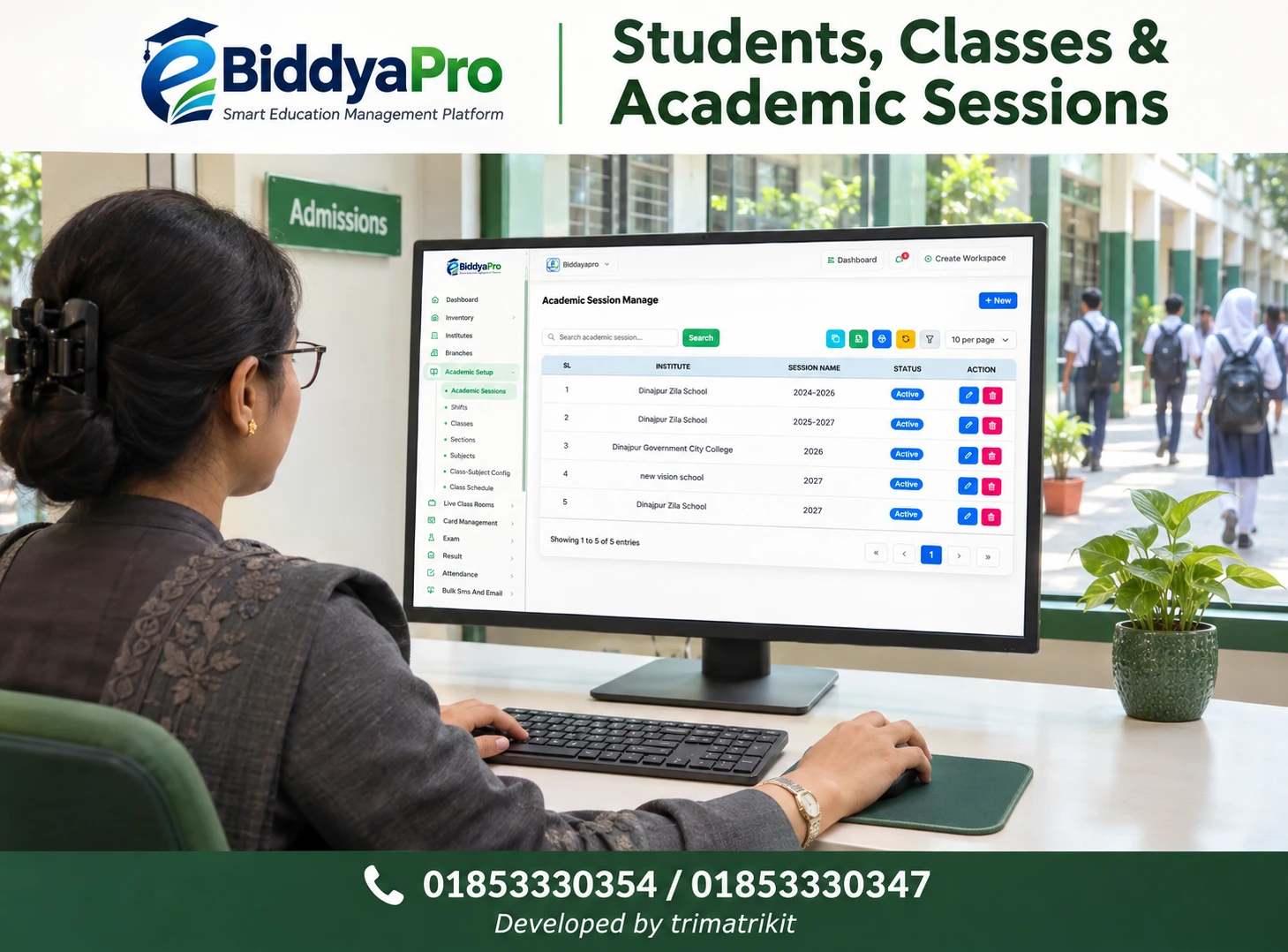
Class assignment establishes the relationship between a subject and the class that uses it. In the supplied eBiddyaPro navigation, Subjects and Class-Subject Config appear as separate entries under Academic Setup. Start in Subjects when a subject record is missing or needs review. Start in Class-Subject Config when the subject already exists but its relationship to a class needs to be created or checked.
For example, suppose the academic office confirms that Class Six should use an existing Mathematics record. The administrator first verifies the subject’s name and code. They then open the class configuration and check whether that exact record is associated with Class Six. The supplied screens establish the subject catalogue and menu path, but they do not show the full assignment form. Follow the fields available in your workspace rather than assuming that session, shift, group, or section can all be selected on the same screen.
Why the distinction matters in Bangladesh
The National Curriculum and Textbook Board publishes materials by academic year, level, and class. Its 2026 resources include a secondary and higher secondary textbook list, as well as a separate Class Six textbook page for the Dakhil stream. The two Class Six contexts illustrate why an administrator should confirm the applicable programme before copying a subject list from another institution or grade. The 2026 materials are dated examples; use the approved materials for the academic year you are configuring.
A textbook list can help staff cross-check subject names. It should be used alongside the applicable subject structure, assessment instructions, and institutional decisions when those documents provide different kinds of information. For instance, knowing that a textbook exists does not tell the examination team whether marks are recorded as one paper or several components. Set up the record from the relevant approved instructions, then test how the institution’s routine and examination workflows use it.
Prepare the subject catalogue before configuring classes
Agree on which source the academic office will use for names and codes. If the school uses an approved subject code for examination records, copy it from that source instead of inventing a new code at data entry. Where a code is only an internal identifier, keep it distinguishable from any board code. A brief naming convention can also help staff recognize whether two labels refer to the same subject or to separate papers.
Review the existing catalogue before adding records for a new year. Similar names are a reason to investigate, not a reason to merge immediately. English and English First Paper may represent different records for a particular purpose, while Math and Mathematics might be two names for the same intended record. Ask the academic or examination team what each record represents and check whether it is already in use. That review is easier before new timetables or mark sheets depend on the selection.
Pay attention to the Type column as well. A subject described as theory or practical answers a different question from whether it is compulsory or optional. If the software presents a single type field, check how your institution’s setup expects that field to be used. Do not assume that choosing a type will automatically control student eligibility, generate a practical mark field, or change the result calculation.
Add and verify a subject record
Open Academic Setup → Subjects with an authorized account. Search for the proposed subject name and code. If an appropriate record already exists under the correct institute, use it where the class configuration permits. If a new record is needed, open Create Subject, confirm the institute shown in the form, and enter the approved name and applicable code. Review any other fields shown in your version before saving.
Return to the list and find the saved record. Verify the institute, spelling, and code, rather than relying on the confirmation message alone. If the record is not visible, check the current search and institute context before submitting again. Repeated attempts can produce near-identical records if duplicate validation is absent or works differently than expected.
When several staff members share responsibility for academic setup, agree on who can create subjects and who can request changes. That prevents an examination officer from creating a second record while a timetable coordinator is already investigating the first. A short explanation of why a new record is needed can also help staff distinguish a genuinely new paper from a spelling correction.
Configure the class-to-subject relationship
Open Academic Setup → Class-Subject Config and identify the intended class in the context available to you. Check which subjects are already associated with that class before making changes. Then use the existing subject records that match the approved class list. Where the configuration offers additional choices, such as a session or another academic grouping, confirm those choices against the institution’s setup rather than inferring them from the subject name.
Start with one class and verify the saved configuration. A school might use the same Mathematics catalogue entry for Class Six and Class Seven, where the software and institutional requirements allow it. The relationship for each class still needs to be verified separately. This lets the catalogue stay consistent while each class retains the correct subject combination.
If the subject does not appear during configuration, check whether the catalogue entry belongs to the right institute and whether any status or filters affect what can be selected. Also compare the view used by the administrator with the view available to the staff member who reported the problem. Creating another record before identifying the cause can leave both records in use and make later corrections harder.
An example: Mathematics is visible in Subjects but missing from the routine
Imagine a school preparing the Class Six timetable. The coordinator can find Mathematics in the subject catalogue, but it does not appear in the relevant routine selection. The administrator confirms that the catalogue record belongs to the correct institute. They then check Class-Subject Config and find that Mathematics was associated with Class Seven but was not included in the intended Class Six setup.
After correcting the Class Six configuration, the coordinator reopens the timetable workflow and checks the selected class and other applicable filters. If Mathematics now appears, the test has identified the missing relationship. If it still does not appear, staff can investigate the routine’s own configuration, permissions, or session selection using a precise example. Either outcome is more useful than creating a second Mathematics record and hoping it appears.
This example also explains why different teams should test their own views. A subject visible to an academic administrator may not appear to a teacher working under a different class or session. Confirm what the user selected and which screen produced the issue before changing a record shared by multiple classes.
Check timetables, examinations, and results separately
A correct class subject list is a starting point for other academic work. A timetable still needs decisions about periods and teaching assignments. Examination preparation may require paper definitions, mark components, or other settings. A result report may use a different view or filter. Confirm how your eBiddyaPro configuration uses the subject record at each stage instead of assuming a change in one area will update every other area automatically.
For a timetable test, ask a coordinator to find the intended class and select one configured subject. For an examination test, ask the responsible staff member to verify the relevant paper or subject in a sample setup. If the school uses separate written and practical marks, check that the appropriate exam settings show both components as required. A catalogue label alone is not proof that marks will be grouped or calculated correctly.
Review the result in the same academic context used to prepare the test. If a subject is missing, identify whether the problem begins in the catalogue, class configuration, exam setup, or report selection. This approach keeps a reporting issue from turning into an unnecessary change to a subject used elsewhere.
Preserve historical records when the curriculum changes
A new academic year may bring a different subject combination or naming convention. Before changing an existing record, check whether previous attendance, marks, routines, or reports refer to it. Renaming a subject that is still linked to earlier results could make those results harder to interpret, depending on how the software displays historical data. Deleting or replacing it without reviewing those links creates an even larger problem.
Distinguish a spelling correction from a change in what the subject represents. Correcting an obvious typo may preserve the same academic meaning. Reusing an existing code for a different paper does not. Where session-specific configuration is available, test whether the new combination can be applied without altering the earlier cohort’s view. If the setup behaves differently, agree on a supported approach with the administrator before processing a full academic year.
A useful handover test is to ask one staff member to find the current class subject list and another to reopen a prior examination record. Each person should be able to explain which subject record is shown and why. If they cannot, clarify the naming or configuration before publishing a timetable or beginning marks entry.
Frequently asked questions
1. What is the difference between adding a subject and assigning it to a class?
Adding creates an entry in the institution’s subject catalogue. Assigning associates an existing subject with the class that uses it. A subject can exist in the catalogue even when the intended class has no confirmed assignment.
2. Where do I add a subject in eBiddyaPro?
Open Academic Setup → Subjects and look for Create Subject. Search the existing list first so you do not create another record for a subject the institution already maintains.
3. Where do I assign a subject to a class?
Start at Academic Setup → Class-Subject Config. Check the class and the context displayed in your workspace, then use the available controls to review or establish the relationship.
4. Do I need to add Mathematics separately for every class?
Do not create one copy per class by default. First check whether the same subject record can be used in multiple class configurations and whether those classes require distinct codes or papers.
5. How do I choose a subject code?
Use the institution’s approved source. If an official code is required for a particular workflow, verify it against the applicable documentation rather than assuming that an internal abbreviation is equivalent.
6. Can I use Bangla subject names?
Check whether your form accepts Bangla and whether the text displays clearly in the routine, marks entry, and reports you use. Agree on one convention so equivalent English and Bangla labels do not become accidental duplicates.
7. Why is a subject missing from Class-Subject Config?
Check the institute, search settings, and any status or permission controls that affect selection. Confirm that the existing record is the intended one before creating another subject.
8. Why does a subject appear for one grade but not another?
The two grades may have different configurations. Compare their approved lists and check the relationship for the grade with the missing subject. Do not assume that assignment to one class applies to every class.
9. Does a subject type determine how marks are calculated?
Do not infer that from the catalogue field alone. Check the relevant examination and result settings, particularly if written, practical, or multiple paper components are involved.
10. How should I handle compulsory and optional subjects?
Use the approved subject structure for the class. Then verify where your workspace records class offerings and where it records an individual student’s choices, if student-level options are needed.
11. Can one class offer different subject combinations?
The institution may require different combinations for separate groups or programmes. Verify how your configuration represents those differences and whether class assignment alone is sufficient for your workflow.
12. Does a class assignment allocate the subject to a teacher?
A class assignment identifies a subject for the class. Teacher allocation is a separate scheduling or staffing decision. Verify the relevant teacher and period in the timetable workflow.
13. Does assigning a subject automatically create its timetable periods?
Do not assume that it does. Check the relevant routine screen and confirm that the subject can be selected, then prepare the approved periods through the supported scheduling process.
14. Should I use a textbook list as the only reference?
Use it to cross-check names and level. For subject combinations, marks, and assessment structure, also consult the applicable instructions for the institution, programme, and academic year.
15. Should a school and a madrasah use the same subject setup?
Use the approved structure for each programme. NCTB publishes separate materials for some streams and grades, so a school’s subject list should not be copied into a Dakhil setup without review.
16. Can I rename a subject that already appears in results?
Check the available edit controls and how a change would affect previous reports. A typo correction and a change to the identity of a paper need different treatment.
17. What should I do if two subject records look identical?
Compare the institute, code, type, and existing links. Confirm which record is approved for future use. Review dependencies before removing, merging, or changing either entry.
18. How can I verify that teachers can find the correct subject?
Ask an authorized teacher or coordinator to open the workflow they actually use. Confirm the institute, class, and applicable filters together, then check whether the intended subject appears.
19. What if a subject appears in the routine but not in the exam setup?
Investigate the exam’s own class, session, subject, and paper settings. A correct routine selection confirms that the subject can be used there; it does not establish that the examination is configured correctly.
20. Should I copy last year’s subject assignments?
Use last year’s records as a reference. Compare them with the newly approved structure and verify that earlier records remain accessible before reusing or changing any configurations.
21. What should I ask to see in an eBiddyaPro demo?
Ask the demonstrator to create a sample subject, assign it to one class, and show it in the intended routine and examination views. Then have them open a different class and explain why its subject choices differ.
Recent Post