EAS Security
 EAS Gate
 Security Tag
 EAS Accessories
 Gadgets
 Convex Mirror
 Road Barrier
 Burglar Alarm
 Calling System
Understanding Your Workforce at a Glance with eHajira HRM Dashboard
November 10, 2026
Understanding Your Workforce at a Glance with eHajira HRM Dashboard
A manager asks how many employees are currently recorded in the organization. Another wants to know which department has the largest team. HR needs to review recent joiners, while a branch supervisor asks whether anyone is on leave today. These questions are related, but they do not all measure the same thing.
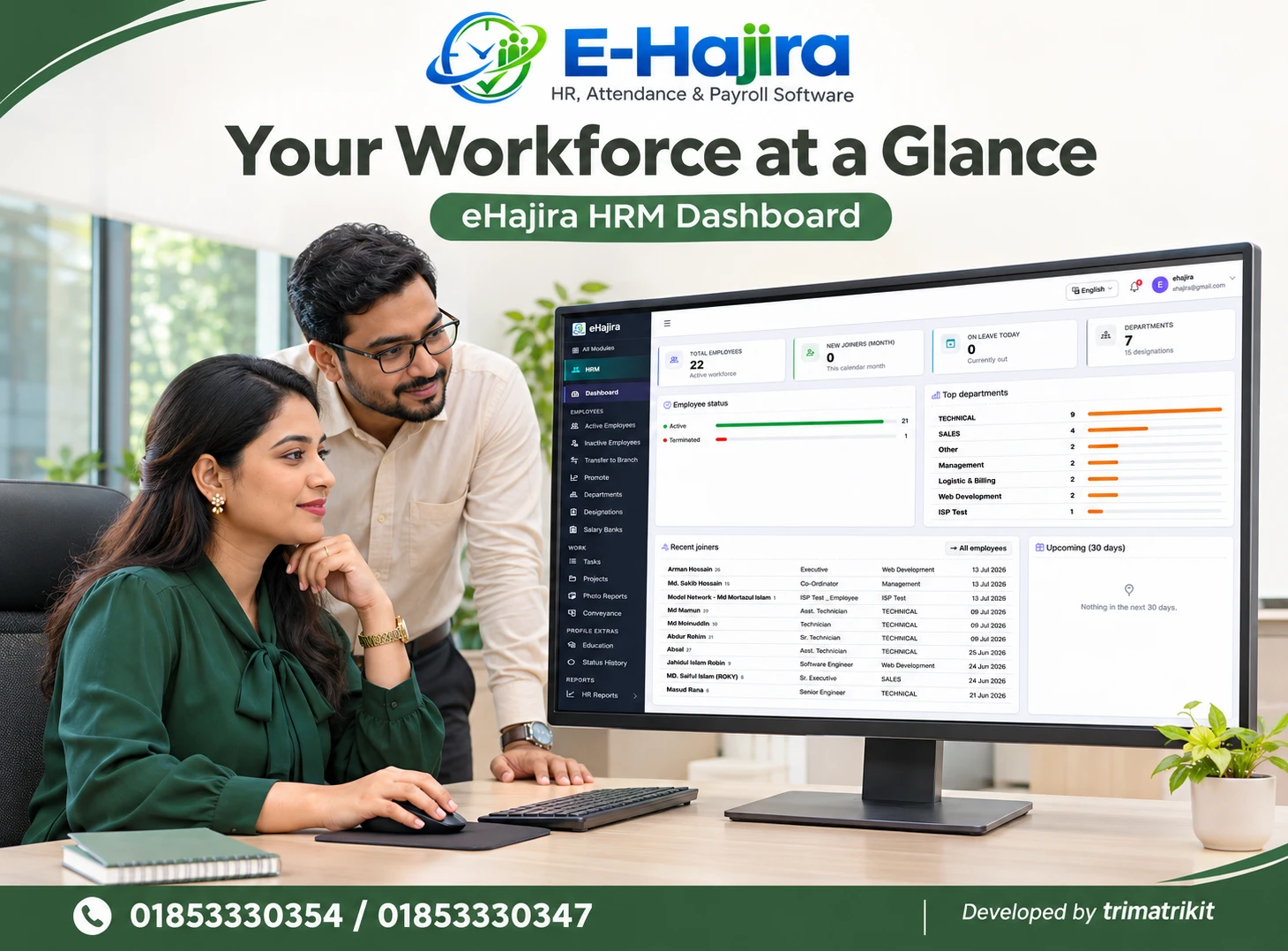
The eHajira HRM Dashboard brings several workforce summaries into one view. Your supplied screenshot shows Total Employees, New Joiners for the month, On Leave Today, and Departments. It also includes Employee Status, Top Departments, Recent Joiners, and an Upcoming section covering 30 days.
These summaries can provide a useful starting point for daily HR review and management discussions. Their value depends on understanding what each figure represents, which period it covers, and when a detailed employee record is needed.
For organizations in Bangladesh, this is particularly relevant when HR responsibilities are shared across departments and branches. A clear dashboard can help teams ask better questions, but a summary should always be interpreted in the context of the underlying records.
What Is the eHajira HRM Dashboard?
The HRM Dashboard is the workforce overview page within the HRM area shown in your screenshot. It combines employee-related figures, charts, and lists to help authorized users review the organization’s recorded workforce.
The supplier’s published information describes this dashboard in terms of employee counts, departmental distribution, and joining-related information. The supplied screen provides more specific evidence of the sections available in this example account.
A dashboard is most useful as a starting point. It can show where attention may be needed, while the employee profile, leave record, or relevant report provides the details required for a decision.
The screenshot does not establish every calculation rule, permission boundary, or refresh interval. Organizations should confirm those behaviours in their configured account.
Why Workforce Visibility Matters in Bangladesh
A Bangladesh business may operate with a central HR team, several department managers, and employees working across different locations. When records are maintained inconsistently, even basic workforce questions can produce different answers.
One manager may count only active employees. Another may include everyone with an employee profile. Finance may use the population included in a particular payroll run.
These differences do not always indicate an error. They may reflect different definitions and reporting periods.
The eHajira HRM Dashboard can support a shared discussion by presenting recognizable summaries. Management should then agree on the meaning of each measure before using it for recruitment, staffing, or administrative decisions.
Start by Reading the Labels
The first step in reviewing a dashboard is to read the label and supporting text around each number.
In your screenshot, New Joiners includes a monthly reference, while On Leave Today concerns the current day. These are different time windows.
The Departments card also shows a separate designation count underneath. Those two values describe different parts of the organizational structure.
Reading only the largest numbers can lead to misleading comparisons. Staff should understand the unit being counted, the relevant period, and any population restrictions.
A short internal explanation of the dashboard’s measures can help new HR officers and managers interpret the screen consistently without relying on assumptions.
Understanding Total Employees
The Total Employees card in the supplied screenshot displays 22, with supporting text referring to the workforce. This is an example value from that captured account, rather than a current figure for your organization.
The Employee Status section separately shows 21 Active and one Terminated record. Those figures add up to 22 in this screenshot.
That arithmetic does not establish the exact population rule used by the Total Employees card. It does show why staff should investigate definitions before treating the card as a verified count of currently active employment.
An organization should confirm which statuses are included and compare the summary with the appropriate employee list.
Employee Status Is Different from Attendance
The Employee Status section describes employment-related status categories. The visible example contains Active and Terminated.
An Active employee should not automatically be described as present today. Employment status and daily attendance answer different questions.
A person may remain an active employee while taking approved leave, working a different shift, or having an unresolved attendance record. Similarly, a dashboard employment category does not establish the details of a particular day’s check-in.
Managers should use the relevant Attendance view when asking who attended work. The HRM Dashboard helps review workforce records, while attendance processes explain recorded daily presence.
Reviewing New Joiners for the Month
The New Joiners card in the screenshot displays zero and identifies the period as the calendar month.
That figure should be interpreted against the applicable joining-date rule and the system’s date context. It should not be treated as a count of everyone recently entered into the database unless that behaviour has been confirmed.
An employee record created today may contain an earlier joining date. A future-dated joining record may need different treatment.
Before reporting a monthly recruitment figure, HR should confirm how the card is calculated. This is especially useful during initial implementation, when older employee records may be entered together.
Why Recent Joiners Can Appear When Monthly Joiners Is Zero
Your screenshot shows a Recent Joiners list even though the monthly New Joiners card displays zero.
There is no necessary contradiction. A recent-joiner list may show the latest available joining records, while the card concerns only the stated calendar month.
The visible list contains earlier joining dates. This illustrates why staff should compare periods rather than assume that every section uses one shared date range.
The screenshot does not establish the list’s complete selection rule or row limit. Organizations should demonstrate how it behaves as new records are added.
Understanding this distinction can prevent unnecessary corrections to employee data that is already accurate.
Reading On Leave Today Carefully
The On Leave Today card provides a day-specific workforce summary. In the screenshot, its value is zero.
That should not be interpreted as proof that no employee has submitted a leave request. A request may be pending, concern another date, or fall outside the card’s calculation rules.
The organization should confirm which leave statuses are counted and how partial-day or other leave arrangements are handled where relevant.
When a manager needs to know whether a particular employee is authorized to be away, the underlying leave application should be reviewed.
The dashboard can direct attention, but the application establishes the recorded dates and decision.
Departments and Designations Measure Different Things
The Departments card in the supplied example shows seven departments and separately refers to 15 designations.
A department describes an organizational grouping, while a designation describes a position or title. Several designations may exist within one department.
Neither figure should be interpreted as employee headcount. Creating a new designation does not necessarily mean recruiting another person.
Organizations should maintain clear naming conventions for both. Similar department names entered separately can make workforce reporting difficult to interpret.
HR should also confirm how inactive or unused organizational records affect the displayed counts. The screenshot does not establish those inclusion rules.
Understanding Top Departments
The Top Departments section shows employee-related counts beside department names and horizontal bars.
In the supplied example, Technical has the largest displayed count, followed by Sales. Other departments have smaller values.
This helps users see workforce distribution, but it does not measure performance, workload, or profitability. A larger department may serve a different operational purpose from a smaller one.
The section title also requires attention. A view labelled Top Departments may show a selected set rather than every possible department, depending on its configuration.
Before using the chart for management reporting, staff should confirm the population, ranking method, and whether unassigned or inactive records are included.
Department Size Does Not Prove Staffing Adequacy
A department with nine employees is not automatically adequately staffed. A department with two employees is not automatically understaffed.
Staffing needs depend on responsibilities, skills, working hours, leave, demand, and the distribution of assignments.
The HRM Dashboard can help identify where further discussion is useful. Managers can then review operational requirements and relevant attendance or roster information.
For example, a technical team may have several employees overall but lack the required skill for a particular assignment. Headcount alone does not reveal that limitation.
The dashboard should support staffing questions rather than produce an unsupported staffing conclusion.
Reviewing the Recent Joiners List
The Recent Joiners section provides a more detailed view than the monthly summary card.
Your screenshot shows names, accompanying identifiers, designation information, departments, and joining dates. An All employees link is also visible.
HR can use the list to identify records that may need follow-up. However, joining the organization and completing onboarding are different stages.
A visible employee record does not prove that documents, reporting arrangements, access permissions, attendance setup, or payroll preparation are complete.
Where onboarding follow-up is required, staff should review the actual employee profile and the institution’s approved process.
Do Not Assume What Upcoming Includes
The dashboard contains an Upcoming section labelled for the next 30 days. In the supplied example, it displays no upcoming items.
The screenshot does not identify the complete set of event types included in that section. It would therefore be inaccurate to describe it as a confirmed birthday, contract-expiry, probation, or document-reminder feature without a demonstration.
Organizations should ask what qualifies for inclusion, which date fields are used, and which users can see the results.
An empty section should be interpreted within that scope. It does not prove that the organization has no important HR deadlines during the next month.
Keep Employee Profiles Reliable
Workforce summaries depend on the quality of the records behind them.
The developer’s Bangladesh HR software guide describes a useful employee profile as including identification, department, designation, joining information, employment status, and reporting relationships. These fields provide relevant context for reviewing dashboard figures.
HR should maintain an agreed source for these details and update them through authorized processes.
If a department total looks unexpected, the answer may lie in missing assignments, duplicate profiles, or outdated status information. The solution should address the actual record issue rather than changing data merely to make a chart look more balanced.
Transfers and Promotions Need Accurate Records
An employee transfer can affect branch responsibilities, department assignments, or reporting relationships. A promotion may affect designation while leaving the department unchanged.
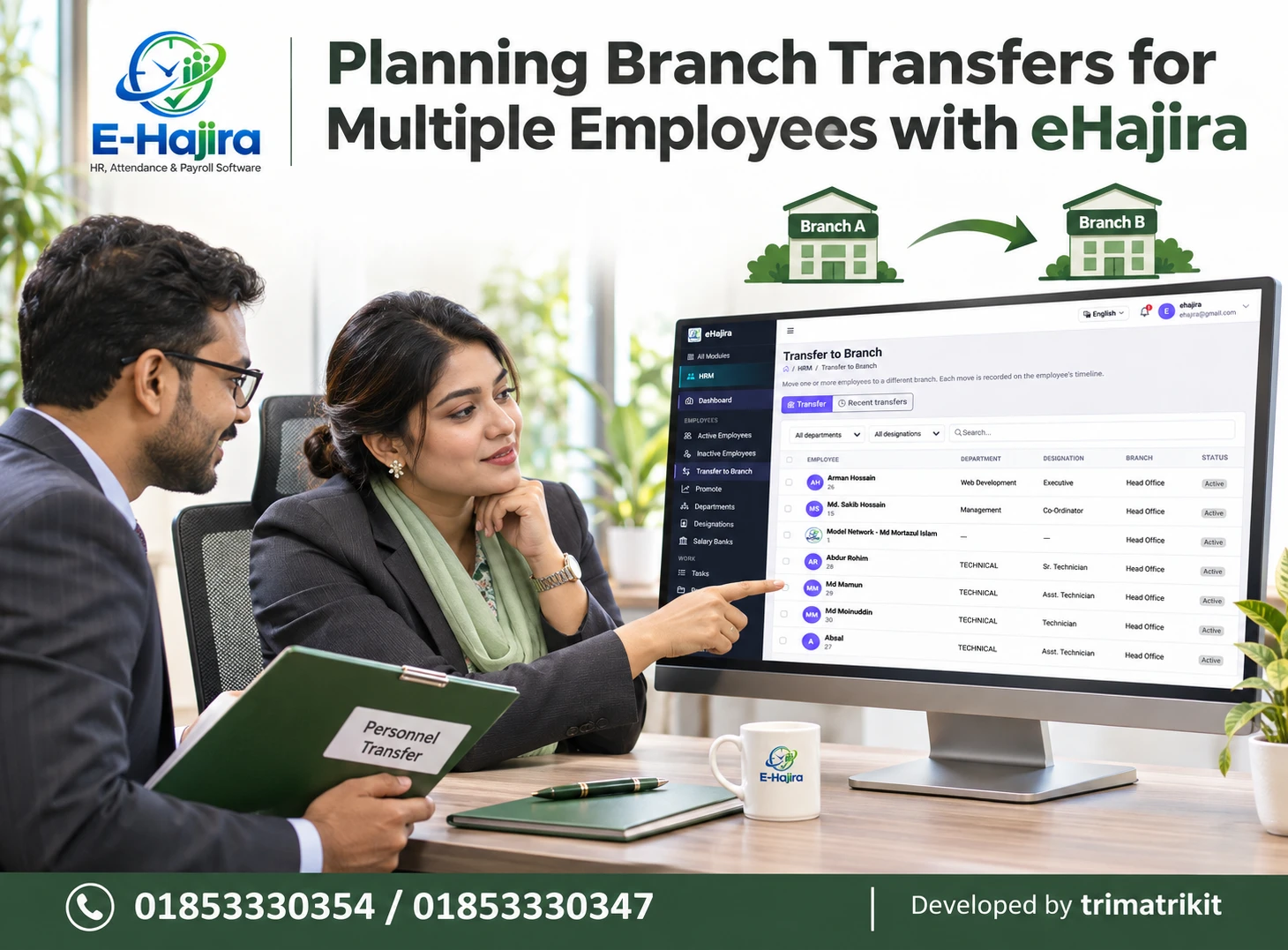
The supplied sidebar shows separate areas for branch transfer and promotion. Their presence is relevant, but the dashboard does not establish every approval or update mechanism behind them.
After an authorized change, HR should confirm that the employee’s current record reflects the intended arrangement. The relevant summary can then be reviewed for consistency.
The effective date also matters. The date an administrator enters a change may differ from the date the new assignment begins.
These distinctions help prevent misleading workforce comparisons between reporting periods.
Investigating Counts That Do Not Match
When a dashboard figure differs from another report, start by comparing definitions.
The two views may use different employment statuses, time periods, branch scopes, or permissions. They may also have been captured at different times.
In your screenshot, the status figures and departmental counts provide useful reconciliation points. Staff can compare them with a detailed list, but should not infer a universal calculation rule from one example.
If the difference remains unexplained, record the relevant values, account scope, and time of review. This gives support staff a clearer basis for investigation.
Changing records before understanding the discrepancy can make the original issue harder to trace.
Dashboard Access and Confidentiality
An HRM Dashboard may display employee names, employment categories, departments, and joining information.
Organizations should decide which users need access to those details. A department manager’s responsibilities may differ from those of central HR or a system administrator.
Permissions should be tested using representative accounts. The supplied screenshot does not show the complete access model.
Screenshots used in presentations also deserve attention. Real employee details should not be circulated more widely than necessary.
For demonstrations, approved sample data can help explain the dashboard without exposing operational records. Internal management discussions should use authorized, appropriately scoped information.
Use the Dashboard for Daily HR Review
A useful daily review begins with changes that need attention.
HR can examine whether workforce figures align with expected employment activity, whether a new joiner requires record verification, and whether today’s leave summary raises an operational question.
The review should then move to the relevant source record. Looking at the dashboard alone is unlikely to resolve a missing joining date or an incorrect department assignment.
Organizations can assign responsibilities for follow-up. A branch supervisor may confirm local information, while central HR handles an authorized profile correction.
This connects the overview with practical work instead of allowing dashboard review to become a passive routine.
Prepare Better Management Discussions
Before a management meeting, HR should explain what the figures cover and when they were reviewed.
A workforce summary is more useful when it identifies a clear question. Department distribution might prompt a review of planned recruitment, while recent joiners might prompt discussion of onboarding progress.
However, the dashboard does not establish recruitment return, employee productivity, or staffing cost by itself.
Where management needs those conclusions, additional operational and financial information is required.
A disciplined presentation distinguishes the visible fact from the proposed action. This helps decision-makers understand both the evidence and its limits.
Understand Refresh and Historical Reporting
The supplied screen does not state an automatic refresh interval or provide a visible historical date selector.
Organizations should therefore confirm when dashboard figures update and how to retrieve information for earlier reporting periods.
A screenshot of today’s summary is not a complete month-by-month trend. Similarly, a department’s current count does not establish how many people it had at the beginning of the year.
If historical comparison is important, staff should request a demonstration of the relevant reports or approved recordkeeping method.
Clear reporting periods help Bangladesh businesses discuss workforce changes consistently across monthly reviews and branch meetings.
Keep HRM and Payroll Decisions Connected Carefully
The HRM Dashboard is not a payroll approval screen.
Employee status, joining information, and department assignments may be relevant to payroll work, but salary eligibility and calculation require the appropriate payroll records and approved rules.
A terminated status does not independently explain the final payable amount. A new joining record does not establish that the employee has been included correctly in a payroll run.
HR and finance should review their respective workflows together. The dashboard can highlight records needing attention, while detailed checks establish the correct operational and financial outcome.
This avoids turning a useful summary into a decision tool beyond its demonstrated purpose.
A Practical Bangladesh Workplace Example
Imagine a service business preparing for a monthly management meeting.
HR reviews the eHajira HRM Dashboard and notices that Technical has the largest displayed team. A manager asks whether the department can accept additional installation assignments.
HR explains that the chart shows workforce distribution, then checks the relevant employee records and coordinates with the operational manager about skills and availability.
During the same review, the monthly joiner card shows zero while Recent Joiners contains earlier records. The team recognizes that the sections cover different periods.
This hypothetical example shows how a dashboard can guide discussion without replacing detailed staffing analysis.
What to Confirm During an eHajira Demonstration
A useful demonstration should connect dashboard summaries with underlying records.
The organization should ask how employee statuses affect totals, how joining dates determine monthly figures, and how department assignments appear in the chart.
The team should also confirm leave-count rules, the purpose of Upcoming, account permissions, and the timing of updates.
Where transfers, promotions, or historical reports are important, those processes should be demonstrated using representative examples.
The objective is to understand the organization’s actual configured workflow. A visually clear dashboard is most valuable when staff can explain how its figures are produced.
Frequently Asked Questions
1. What is the eHajira HRM Dashboard?
It is the workforce overview shown within the HRM area. The supplied screen combines employee figures, status information, departmental distribution, and joining-related summaries.
2. Which sections are visible in the screenshot?
The screen shows Total Employees, New Joiners, On Leave Today, Departments, Employee Status, Top Departments, Recent Joiners, and Upcoming for 30 days.
3. Does Total Employees always mean active employees?
That definition should be confirmed. In the example, the displayed total is 22 while the status section shows 21 Active and one Terminated record.
4. Does Active mean present today?
No. Employment status and daily attendance are different concepts. Attendance should be reviewed through the relevant attendance workflow.
5. Why can monthly joiners be zero while Recent Joiners contains names?
The sections can cover different periods. The visible recent list includes earlier joining dates, while the card specifically refers to the calendar month.
6. Does New Joiners count records created this month?
The screenshot does not establish that rule. Staff should confirm whether it uses joining dates, record creation, or another defined condition.
7. Does On Leave Today include pending applications?
That inclusion rule requires verification. A pending request and an approved absence should not be treated as interchangeable.
8. Does zero leave today mean everyone attended?
No. Employees may have other attendance circumstances. The leave summary is not a complete daily attendance report.
9. Are departments and designations the same?
No. Departments are organizational groups, while designations are positions or titles. Their displayed counts do not represent the same measure.
10. Does the department chart measure performance?
No performance measure is established by the screenshot. The visible chart concerns employee-related distribution across departments.
11. Does a larger department have enough staff?
Headcount alone cannot answer that. Workload, skills, shifts, leave, and operational demand also need review.
12. Does Top Departments include every department?
The selection and ranking rules should be confirmed. The title alone does not establish whether the view is exhaustive in every account.
13. Does Recent Joiners prove onboarding is complete?
No. Employee creation and onboarding completion are different stages. Documents and operational setup need separate verification.
14. What does Upcoming cover?
The screen shows a 30-day section, but does not identify all included event types. Organizations should request a demonstration.
15. Does an empty Upcoming section mean no HR deadlines exist?
No. It means no items are displayed under that section’s actual rules. Other deadlines may need separate tracking.
16. Can dashboard figures differ by user?
They may depend on configured permissions or scope, but the screenshot does not establish the exact behaviour. Representative accounts should be tested.
17. How should HR investigate an unexpected total?
Compare the relevant employee list, status definitions, reporting period, and account scope before editing any records.
18. Do transfers automatically update every dashboard section?
The complete behaviour is not demonstrated. HR should verify the current employee assignment and the resulting summary after an authorized change.
19. Does the dashboard refresh automatically?
No interval is shown in the screenshot. Refresh behaviour should be confirmed in the configured system.
20. Can this screen provide historical workforce trends?
The supplied view does not demonstrate historical comparison controls. Relevant reports should be reviewed separately.
21. Can the dashboard be used to approve payroll?
It should not replace payroll review. Salary eligibility and calculations require the appropriate detailed records and approved process.
22. What should businesses test before relying on the dashboard?
They should test metric definitions, status handling, joiner periods, leave counts, departmental assignments, permissions, and update behaviour.
Turn the Workforce Overview into Useful Action
The eHajira HRM Dashboard can help HR teams and managers understand recorded workforce information quickly. Its practical strength lies in bringing several summaries together while providing a starting point for further review.
Reliable use requires clear definitions. Active employment is different from attendance, monthly joiners are different from a recent list, and department size is different from staffing adequacy.
For an eHajira demonstration focused on workforce visibility in Bangladesh, contact 01853330354 / 01853330347. Ask to review the dashboard alongside employee records, joining information, department assignments, and the relevant leave workflow.
Recent Post