EAS Security
 EAS Gate
 Security Tag
 EAS Accessories
 Gadgets
 Convex Mirror
 Road Barrier
 Burglar Alarm
 Calling System
Does Present Mean a Full Working Day? Understanding eHajira Reports
November 14, 2026
Does Present Mean a Full Working Day? Understanding eHajira Reports
An employee appears as Present in an attendance report. Does that mean the employee completed the assigned shift, recorded every required punch, and qualifies for a full day of pay?
The answer is not automatically.
Present is an attendance classification. Understanding the working day requires reviewing the relevant shift, recorded times, breaks, early departure, and applicable attendance rules. Payroll treatment requires its own review of verified information and approved arrangements.
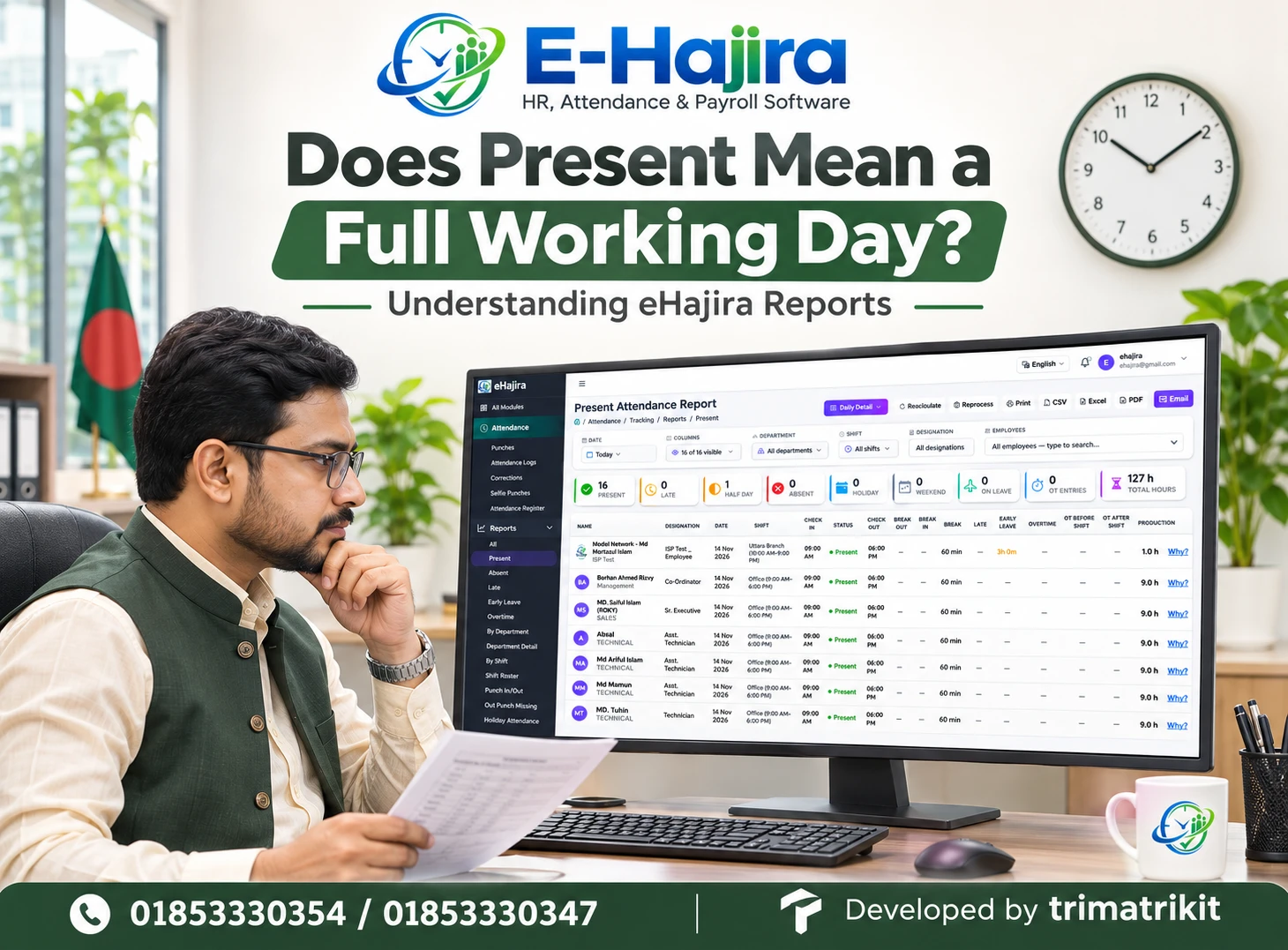
The eHajira Present Attendance Report screenshot illustrates why these distinctions matter. It brings together attendance status, check-in and check-out times, shift information, break details, early leave, overtime-related columns, and a column labelled Production. Reading only the green Present label would overlook much of the information available.
For HR teams in Bangladesh, this is a practical issue. Offices, factories, educational institutions, retail businesses, and service companies may operate different schedules. A consistent reporting process helps administrators explain attendance decisions without treating every employee’s day as identical.
This guide explains how to review the supplied eHajira report, interpret its information carefully, and investigate differences before using attendance records in management or payroll discussions.
What the Supplied eHajira Report Shows
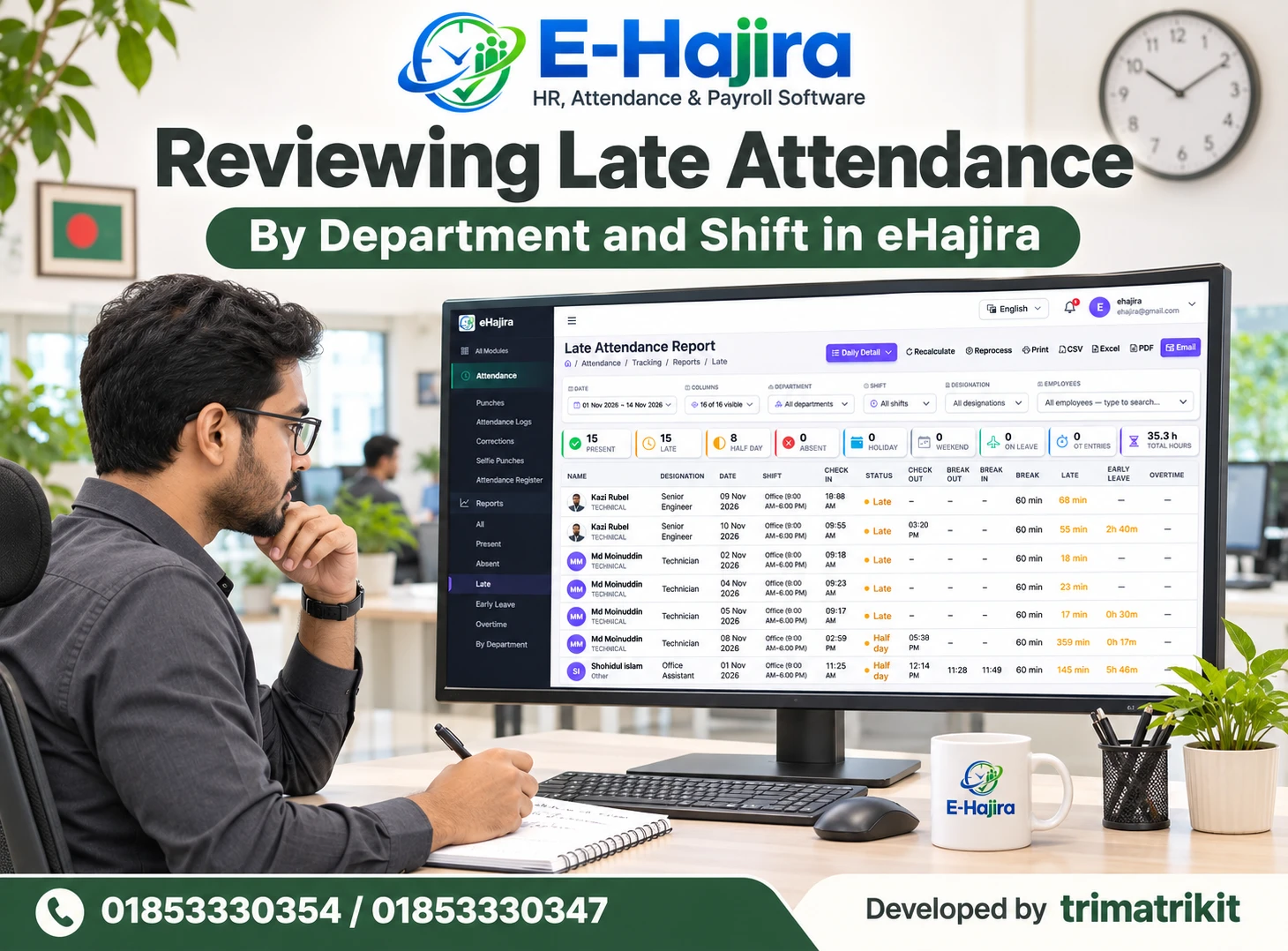
The screenshot is titled Present Attendance Report. It includes a Daily Detail view selector and filters for Date, Columns, Department, Shift, Designation, and Employees.
Below the filters are summary cards for Present, Late, Half Day, Absent, Holiday, Weekend, On Leave, OT Entries, and Total Hours. The table provides employee-level details, including shift, check-in, status, check-out, break information, late time, early leave, and overtime-related columns.
The page also includes Recalculate, Reprocess, Print, CSV, Excel, PDF, and Email controls. A “Why?” link appears beside visible employee rows.
These features provide several ways to examine and communicate attendance information. However, a screenshot does not reveal every calculation rule, action scope, or permission setting. The explanations below distinguish what is visible from what an organization should verify in its own configuration.
Present Status Answers Only Part of the Question
Present tells the reader how a record is classified. It does not independently describe every aspect of the employee’s working day.
An employee may have recorded attendance but departed before the assigned shift ended. Another employee may have completed a shorter scheduled day. Someone else may have a missing time that requires correction.
The classification may depend on the organization’s configured attendance rules. Without reviewing those rules, HR should not assume that Present means a universally defined number of hours.
The supplied report demonstrates this distinction directly. A visible row shows Present status together with an early leave value. The status and the exception can therefore appear together in this report.
A useful review asks two separate questions: what status has the system assigned, and what do the supporting details show?
A Visible Example: Present with Early Leave
The first visible employee row has a shift labelled 10:00 AM–9:00 PM. Its check-in is shown as 9:00 AM and check-out as 6:00 PM. The row displays Present and an Early Leave value of 3h 0m.
This is enough to show that a Present label does not necessarily mean the scheduled end time was reached.
However, the row also contains other values whose formulas are not explained by the screenshot. HR should not reverse-engineer the complete attendance calculation from the visible times alone.
The appropriate response is to examine the assigned shift, relevant settings, supporting attendance records, and any explanation available through the report.
This example is especially useful when explaining eHajira to managers. The report provides a classification and additional context; the reader must consider both.
Why This Matters for Organizations in Bangladesh
A Bangladeshi company may have a head office with fixed hours, a technical team making customer visits, and operational staff working shifts. A school may have teaching and administrative schedules that differ from one another.
These examples show why a single attendance label cannot explain every working arrangement.
For a service employee, completing an approved assignment outside the usual office may be relevant. For a shift employee, the applicable roster may be more important than a standard office timetable. For someone working across midnight, the attendance date needs careful interpretation.
The organization should establish how these circumstances are recorded and reviewed in eHajira. A report becomes more useful when HR understands the business arrangement behind the data.
The aim is consistent interpretation, supported by evidence, rather than identical treatment of different schedules.
Confirm the Date Before Interpreting Results
The supplied report’s Date filter shows Today. Before discussing any result, confirm which date or reporting period is actually selected.
A screenshot or exported file can outlive the context in which it was created. “Today” on a live page does not provide enough information for someone reviewing the image later.
When preparing a report for management, identify the actual date or period. This helps prevent confusion between an ongoing working day and a completed attendance review.
Timing also matters within the day. If attendance information is still arriving or the shift has not finished, the report may require another review later.
The available date options are not expanded in the screenshot. Confirm the supported selections in your version rather than assuming every period or custom range is available.
Check the Population Behind the Present Report
Department, Shift, Designation, and Employees filters define the context of the information being reviewed.
A report filtered to one department should not be described as a company-wide result. Similarly, a selected shift may exclude employees whose schedules differ.
When an expected employee is missing, review the filters before concluding that the person was absent. The employee may be outside the selected population or may require review in another attendance category.
A Present report also should not automatically be treated as a complete workforce reconciliation. Its title suggests a particular reporting purpose, while the precise inclusion rules need confirmation.
For an organization-wide review, establish which population and attendance categories are required, then use the appropriate report views consistently.
Interpret Summary Cards Within Their Scope
The screenshot shows several summary cards, including 16 Present, 1 Half Day, and 127 h Total Hours.
These are visible report values. They should not be combined or divided into new conclusions without understanding their definitions.
For example, dividing Total Hours by Present does not necessarily produce a meaningful average working day. The calculation could be affected by the reporting population, category relationships, or the meaning of the hours total.
Likewise, Present and Half Day should not automatically be assumed to be mutually exclusive categories. The screenshot does not establish whether the summary categories overlap or use different counting rules.
If a manager wants a particular measure, such as completed scheduled days, define that measure first and confirm how the report supports it.
Compare Attendance with the Applicable Shift
The shift provides context for recorded times. An arrival time cannot be classified fairly without knowing when the employee was expected to start.
In the screenshot, different shift labels are visible. This reinforces the need to compare each employee’s attendance against the relevant schedule.
For historical reports, confirm the shift that applied on the attendance date. An employee’s current assignment may differ from an earlier assignment following a transfer or schedule change.
Do not assume that editing a current shift automatically corrects all historical reports. That behavior depends on the platform’s configuration and processing rules.
The practical question is whether the report is using the correct schedule for the day under review. Resolving that question should come before interpreting late arrival or early departure.
Check-In and Check-Out Show Recorded Times
Check-in and check-out are important evidence, but their meaning depends on how the system obtains and processes them.
A displayed check-in may represent a selected event from several punches. A check-out may require review when an employee forgot to record departure or when a shift crosses midnight.
eHajira’s supplier information distinguishes raw punch records from processed attendance logs. This provides a useful starting point when investigating differences between an employee’s recorded events and the daily report.
When an employee questions a time, compare the relevant underlying records. Do not replace a disputed value merely to make the report look complete.
A reliable review establishes which events belong to the employee and the applicable working day.
Elapsed Time Is Not Automatically Net Working Time
The interval between check-in and check-out is elapsed time. Whether that interval equals the report’s working hours depends on the applicable calculation rules.
Consider a hypothetical employee who checks in at 9:00 AM and checks out at 6:00 PM. The elapsed interval is nine hours. If a particular calculation deducts a one-hour break, its net result would be eight hours.
This example explains a possible distinction; it does not state eHajira’s formula.
In fact, the supplied screenshot displays a Break value of 60 min alongside some 9.0 h Production values for 9:00 AM–6:00 PM records. That combination is a reason to verify the definitions rather than assume that the break has been subtracted from that column.
Review Recorded Breaks and Break Allowances Separately
The table includes Break Out, Break In, and Break columns. These labels should not automatically be treated as interchangeable.
Break Out and Break In may provide event-related information when populated. A Break duration could reflect another rule or source. The screenshot does not establish the complete relationship.
In the visible rows, break-event columns contain dashes while a 60 min Break value is displayed. A reader cannot conclude from this alone that each employee recorded a one-hour break.
HR should confirm whether the duration is scheduled, defaulted, calculated, or otherwise configured.
This distinction helps explain why a report can contain a break value even when individual break events are not visible.
Present Can Coexist with Early Departure
An early departure value provides information beyond the attendance status.
Before drawing a conclusion, compare the recorded check-out with the relevant shift end. Then review any approved arrangement that could explain the difference.
An employee may have authorization to leave early, or the displayed record may need correction. The report should support investigation rather than substitute for it.
The first visible row’s Present status and 3h 0m Early Leave demonstrate why managers should read across the row.
A green status should not hide an exception, and an exception should not automatically be treated as misconduct. The correct interpretation depends on the verified facts and the organization’s approved process.
Late Arrival Is Different from Absence
Arriving after the scheduled start and being absent are different situations.
The supplied report includes a Late summary and a Late column. Their presence allows readers to consider punctuality alongside other attendance details.
However, the screenshot does not establish the threshold for lateness, any grace period, or how late arrival interacts with Present status.
Those rules should be understood before comparing employees. A person assigned to one shift should not be judged against another shift’s start time.
When a late value appears unexpected, review the schedule and underlying time records before changing the attendance decision.
A clear explanation of the applicable rule is more useful to employees than simply pointing to a colored indicator.
Half Day Requires Its Own Definition
The screenshot includes a Half Day summary card, but it does not show how that category is calculated.
A half-day classification could depend on configured attendance criteria. It should not be assumed to mean exactly half of a standard office interval in every organization.
Confirm the applicable definition before using the result in payroll preparation or employee communication.
Also establish how the category relates to other report values. If Present and Half Day appear in the same summary, determine whether they count different concepts or overlapping records.
This avoids incorrectly adding categories together or treating the report as internally inconsistent when the underlying counting rules have not yet been reviewed.
Overtime Columns Need Context
The report includes Overtime, OT Before Shift, OT After Shift, and OT Entries.
These labels indicate that overtime-related information can be presented. They do not, by themselves, establish the calculation formula, approval status, or financial treatment.
An employee arriving early or leaving late does not automatically establish approved payable overtime. The organization must review the relevant work arrangement and applicable process.
Likewise, a dash is not always equivalent to a confirmed numerical zero. Its meaning should be checked where the distinction matters.
When overtime figures are questioned, compare the shift, relevant time records, and supporting authorization. Attendance reporting and payment approval should remain clearly understood responsibilities.
Understand the “Production” Column Before Using It
The supplied table contains a Production column with values expressed in hours.
The label should not be interpreted as completed units, sales output, employee effectiveness, or a verified measure of productivity.
International Labour Organization material discusses labour input and output as distinct concepts in productivity analysis. The practical implication for this report is that a time value alone does not establish what an employee produced. This is an interpretation principle, not a claim about eHajira’s formula.
Confirm what Production means in the organization’s eHajira configuration. It may represent a particular time calculation, but the screenshot does not explain that calculation.
Until its definition is established, avoid using it as a performance score or direct payroll quantity.
Use “Why?” to Investigate, Without Assuming Its Contents
A “Why?” link is visible beside the employee rows. It provides a potential route to further explanation.
Open the relevant detail when reviewing an unexpected result. Compare any explanation with the employee’s shift and supporting attendance information.
The screenshot does not show the contents of that detail. It would therefore be inaccurate to promise that it always displays a complete formula, approval history, or every processing event.
If the explanation does not resolve the question, provide support with the employee identifier, date, selected filters, and the specific value that appears inconsistent.
This makes the question concrete and easier to investigate.
Recalculate and Reprocess Are Different Named Actions
The report includes both Recalculate and Reprocess controls.
Their separate labels are a reason to understand their purposes before use. The screenshot does not reveal their scope, required permissions, or effect on existing records.
Confirm whether an action applies to selected employees, the reporting period, or another population. Also determine whether it updates derived values or handles underlying attendance information differently.
Do not repeatedly run both actions simply because the report contains a surprising number.
First identify the suspected cause. Then use the supported action through the organization’s approved procedure, and compare the resulting report with the previous state.
Review Before Exporting or Sharing
Print, CSV, Excel, PDF, and Email controls are visible on the report.
Before producing an output, verify the date, employee population, and selected columns. The screen shows “16 of 16 visible,” but the relationship between visible columns and each export format should be checked.
Inspect a sample output for completeness and readability. Confirm whether the file includes all relevant records and whether wide tables fit the chosen format.
For email, verify the intended recipient and content before sending. The existence of an Email button does not establish what will be attached or how recipients are selected.
Share only the information needed for the task, particularly when a report includes employees from several departments.
Keep Attendance Review Separate from Payroll Approval
The Present Attendance Report can support payroll preparation, but it is not a complete salary statement.
Salary treatment may involve employment arrangements, approved leave, allowances, authorized overtime, and other applicable components.
A Present label cannot independently settle those questions. Similarly, an early leave value does not explain the complete financial outcome without the relevant rules and review.
For a Bangladeshi organization, HR and payroll staff should agree on which verified report values are used and how exceptions are resolved.
This creates a clearer handover: HR confirms the attendance facts and relevant decisions, while payroll applies the authorized calculation process. Neither team needs to infer the entire result from one attendance status.
Frequently Asked Questions
1. Does Present mean a full working day in eHajira?
Not automatically. Present is an attendance classification. Review the applicable shift, recorded times, breaks, and exceptions to understand the day. Payroll treatment requires additional consideration of the approved arrangements.
2. Can an employee be Present and leave early?
Yes, this combination is visible in the supplied screenshot. The first employee row shows Present together with an Early Leave value. The supporting details therefore matter alongside the status.
3. Does Present confirm a full day of salary?
The status alone does not establish the salary outcome. Payroll depends on verified attendance information and the relevant calculation process. Avoid treating one label as a complete payment decision.
4. What should I review first?
Confirm the actual date or period and the selected employee population. Then examine the relevant shift and row details. Incorrect filters can make otherwise accurate report values misleading.
5. Can different employees have different full-day schedules?
Yes. Organizations may assign different schedules to office, operational, or other teams. Compare attendance with the schedule applicable to the employee and date rather than assuming one interval applies to everyone.
6. Is check-in-to-check-out time the same as working hours?
Not necessarily. It is an elapsed interval. The report’s calculated time may depend on breaks and other rules. Confirm the field definition before using the value for an operational or payroll decision.
7. Is the displayed break automatically deducted?
The screenshot does not establish that. It shows break values and other time results, but their calculation relationship is unexplained. Check the configuration and available detail before assuming a deduction.
8. Why can Break show 60 min when break events are blank?
The duration and event fields may have different sources or rules. The screenshot does not explain them. Confirm whether the break value is scheduled, defaulted, or calculated in your setup.
9. Does Production measure employee productivity?
The supplied column contains hours, not a demonstrated output measure. Its exact meaning needs confirmation. It should not be used as a productivity or performance score based solely on its label.
10. Can I divide Total Hours by Present to calculate an average?
Only after confirming that both figures use compatible definitions and populations. Overlapping categories or different counting rules could make a simple division misleading. Define the intended measure first.
11. Are Present and Half Day mutually exclusive?
The screenshot does not establish their relationship. Confirm the summary counting rules before adding categories or comparing them. They may represent different aspects of attendance.
12. What does Half Day mean?
Its calculation rule is not visible. Review the organization’s configured criteria and how the classification is used. Do not assume that it always means a fixed number of hours.
13. Does arriving early qualify as overtime?
An early arrival alone does not establish approved payable overtime. Review the schedule, work arrangement, and authorization process. The report’s overtime fields also require their own definitions.
14. What does a dash in an overtime column mean?
Its precise meaning should be confirmed. It may not be equivalent to a verified zero in every context. This matters when preparing totals or explaining an individual record.
15. What is the purpose of the Why? link?
It provides a possible route to additional explanation for the row. The screenshot does not show its contents. Review the available detail before assuming it includes a complete calculation or approval history.
16. Should I use Recalculate or Reprocess?
Understand the purpose and scope of each action first. Their behavior is not demonstrated in the screenshot. Identify the problem and follow the supported procedure instead of running both without a clear reason.
17. Why might an employee be missing from the report?
Filters or report inclusion rules may explain the absence from view. Check department, shift, designation, employee selection, and date. A missing row does not independently prove that the employee was absent.
18. Can the report support department reviews?
Yes, a Department filter is visible. Keep the selected scope clear when discussing results. A department-specific report should not be presented as a complete company-wide attendance result.
19. How should night shifts be reviewed?
Match the times to the applicable shift and attendance-date rules. Work across midnight needs careful interpretation. Confirm the correct date before treating a time as late, missing, or outside the shift.
20. Are CSV, Excel, and PDF available?
Those controls are visible in the screenshot. Check a sample output to confirm included records, selected columns, and formatting. The buttons alone do not establish identical behavior across formats.
21. Can I email the report?
An Email control is visible. Verify the recipient, attachment or content, and information scope before sending. The screenshot does not demonstrate the complete email workflow or delivery result.
22. What is the best way to investigate unexpected hours?
Start with the employee, date, shift, and recorded events. Compare break and exception fields, then review available explanations. If the issue remains, contact support with the specific record and value.
Read the Whole Attendance Record
eHajira’s Present Attendance Report provides more context than a simple list of employees marked Present. Its value comes from reading the status alongside the schedule, recorded times, and relevant exceptions.
For organizations in Bangladesh, a consistent review process can make attendance discussions clearer and payroll preparation better organized. Confirm the report’s definitions, investigate unexpected values, and share outputs with their scope clearly identified.
For guidance on using eHajira attendance reports in your organization, contact 01853330354 or 01853330347.
Recent Post